Affichage des articles dont le libellé est CSS. Afficher tous les articles

mercredi 11 janvier 2017

Free Clipped SVG Slider

Simple slider, with morphing preview images animated using SVG properties.


Structure
The HTML structure is composed of three unordered lists: a ul.gallery  and a ul.navigation for the slider images and navigation, and a ul.caption for the image captions.

Each list item inside the ul.gallery is composed of a .svg-wrapper element wrapping a <svg> containing a  <clipPath> element (used to change the clipping area of the slide image), an <image> element (whose clip-path url attribute is the<clipPath> id), and a <use> element (whose xlink:href attribute is the<clipPath> id) used to create the layer covering the slide images not in the center.
<div class="cd-svg-clipped-slider" data-selected="M780,0H20C8.954,0,0,8.954,0,20v760c0,11.046,8.954,20,20,20h760c11.046,0,20-8.954,20-20V20 C800,8.954,791.046,0,780,0z" data-lateral="M795.796,389.851L410.149,4.204c-5.605-5.605-14.692-5.605-20.297,0L4.204,389.851 c-5.605,5.605-5.605,14.692,0,20.297l385.648,385.648c5.605,5.605,14.692,5.605,20.297,0l385.648-385.648 C801.401,404.544,801.401,395.456,795.796,389.851z">
<div class="gallery-wrapper">
<ul class="gallery">
<li class="left">
<div class="svg-wrapper">
<svg viewBox="0 0 800 800">
<title>Animated SVG</title>
<defs>
<clipPath id="cd-image-1">
<path id="cd-morphing-path-1" d="M795.796,389.851L410.149,4.204c-5.605-5.605-14.692-5.605-20.297,0L4.204,389.851 c-5.605,5.605-5.605,14.692,0,20.297l385.648,385.648c5.605,5.605,14.692,5.605,20.297,0l385.648-385.648 C801.401,404.544,801.401,395.456,795.796,389.851z"/>
</clipPath>
</defs>

<image height='800px' width="800px" clip-path="url(#cd-image-1)" xlink:href="img/img-01.jpg"></image>
<use xlink:href="#cd-morphing-path-1" class="cover-layer" />
</svg>
</div> <!-- .svg-wrapper -->
</li>

<li class="selected">
<div class="svg-wrapper">
<svg viewBox="0 0 800 800">
<title>Animated SVG</title>
<defs>
<clipPath id="cd-image-2">
<path id="cd-morphing-path-2" d="M780,0H20C8.954,0,0,8.954,0,20v760c0,11.046,8.954,20,20,20h760c11.046,0,20-8.954,20-20V20 C800,8.954,791.046,0,780,0z"/>
</clipPath>
</defs>

<image height='800px' width="800px" clip-path="url(#cd-image-2)" xlink:href="img/img-02.jpg"></image>
<use xlink:href="#cd-morphing-path-2" class="cover-layer" />
</svg>
</div> <!-- .svg-wrapper -->
</li>

<!-- other slides here -->
</ul>

<nav>
<ul class="navigation">
<li><a href="#0" class="prev">Prev</a></li>
<li><a href="#0" class="next">Next</a></li>
</ul>
</nav>
</div>

<ul class="caption">
<li class="left">Lorem ipsum dolor</li>
<li class="selected">Consectetur adipisicing elit</li>
<!-- other captions here -->
</ul>
</div> <!-- .cd-svg-clipped-slider -->

Adding style
By default, all the list items inside the ul.gallery have a position absolute, an opacity of zero and are moved to the right and scaled down.
.cd-svg-clipped-slider .gallery li {
/* slider images */
position: absolute;
z-index: 1;
top: 0;
left: 25%;/* (100% - width)/2 */
width: 50%;
height: 100%;
opacity: 0;
transform: translateX(75%) scale(0.4);
transition: opacity .3s, transform .3s ease-in-out;
}

The .selected class is then used to move the selected image back to the center and to scale it up.
.cd-svg-clipped-slider .gallery li.selected {
/* slide in the center */
position: relative;
z-index: 3;
opacity: 1;
transform: translateX(0) scale(1);
}

The .left and .right classes are used to show the preview images on both sides of the selected image; the .left class is also used to move an image preview to the left.
.cd-svg-clipped-slider .gallery li.left {
/* slides on the left */
transform: translateX(-75%) scale(0.4);
}
.cd-svg-clipped-slider .gallery li.left,
.cd-svg-clipped-slider .gallery li.right {
/* .right -> slide visible on the right */
z-index: 2;
opacity: 1;
}

When a new slide is selected, the <path> element used to clip the slide image is animated to reveal a different portion of the image (the entire image if the slide is the .selected one, or just a section for the .left/.right images).

The same classes are also used to control the visibility/position of the image captions. By default, all captions are hidden and moved to the right; the class .selected is used to show the selected caption and move it back to the center, while the .left class is used to hide it and move it to the left.
.cd-svg-clipped-slider .caption li {
/* slide titles */
position: absolute;
z-index: 1;
top: 0;
left: 0;
text-align: center;
width: 100%;
transform: translateX(100px);
opacity: 0;
transition: opacity .3s, transform .3s ease-in-out;
}
.cd-svg-clipped-slider .caption li.selected {
/* slide visible in the center */
z-index: 2;
position: relative;
transform: translateX(0);
opacity: 1;
}
.cd-svg-clipped-slider .caption li.left {
/* slide hidden on the left */
transform: translateX(-100px);
}

Events handling
To implement this slider we created a svgClippedSlider object and used the bindEvents method to attach event handlers for the click to the slider navigation.
function svgClippedSlider(element) {
this.element = element;
this.slidesGallery = this.element.find('.gallery').children('li');
this.slidesCaption = this.element.find('.caption').children('li');
this.slidesNumber = this.slidesGallery.length;
this.selectedSlide = this.slidesGallery.filter('.selected').index();
// ....

this.bindEvents();
}

svgClippedSlider.prototype.bindEvents = function() {
var self = this;
//detect click on one of the slides
this.slidesGallery.on('click', function(event){
if( !$(this).hasClass('selected') ) {
//determine new slide index and show it
var newSlideIndex = ( $(this).hasClass('left') )
? self.showPrevSlide(self.selectedSlide - 1)
: self.showNextSlide(self.selectedSlide + 1);
}
});
}

The showPrevSlide and showNextSlide methods take care of showing the selected slide; these functions are used to add/remove the proper classes from the slide images and captions, and to animate the ‘d’ attribute of the <path> element inside the <clipPath> used to clip the slide image.

samedi 1 octobre 2016

Tutorial Code an animated responsive header


animated responsive header


Learn how to create a responsive and animating page header that moves up on page scroll using JavaScript

In modern web design we see many patterns emerge such as parallax scrolling, the one page long scroll or the hamburger menu icon. But one of the patterns we often see is the animated header that animates up when the user scrolls down the page. This pattern is seen a lot on mobile devices as it helps create more of the screen for the user and is much less obtrusive.

As UX design cwontinues to be at the forefront of our thinking, these kinds of patterns can only be good for us going forward. So with this in mind, we are going to create a simple tutorial that demonstrates the animated header pattern when the page is scrolled down. We will be using CSS for the styling only, but we will be putting our JavaScript hat on to create a simple but very useful script that powers the animation.

We will then make the whole page responsive so we can, if needed, see how this looks on a mobile device and test it accordingly. However, it must be said that this effect does perform much better on a desktop browser. So open up your favourite text editor and let’s get started!

1.Add the logo

Create a new HTML5 document and within the body tag, add an open and closing header element. We are then going to put our navigation in here using the HTML5 <nav> element. And within a <h1> tag, put in the text based logo, with a class name of ‘logo’.

2.Create the navigation

The navigation menu will be positioned at the top left-hand side of the header, so we need to create an unordered list with four list items within it. Within these list items we will add four anchor tags with the navigation menu buttons in text.

3.Responsive menu icon

We want the navigation to be responsive and that means we need to add in the hamburger icon that is associated with responsive menus. In fact, more and more designers are only using the hamburger icon and making the user click it to view other hidden buttons. But that’s beyond the scope of this tutorial. With the menu, place the hamburger icon just underneath the unordered list.

</ul>
<button class="toggle-menu" arialabel="Responsive
Navigation Menu"> </
button>
</nav><!-- end main navigation -->
</header>


4.Add the content

For the header to take effect we will need to add some content to the page. Start by adding the opening and closing <main> and then within the main tag add some paragraphs. It’s up to you how many paragraphs you add; we’ve added 11 but only shown four in the code example. If you have your own text, then great, if not then just add some Lorem Ipsum and even a few images for now.

5.Scripts

This project won’t be able to function without our JS script. As you probably know, it’s good practice to always add the link to your scripts at the very bottom of the document, just above the closing body tag. And to keep things easy we will call our script, ‘scripts.js’.

<!-- My Scripts -->
<script type="text/javascript" src="scripts.
js"></script>
</body>
</html>


6.Normalize CSS

When starting a new design project, it’s always a good idea to take advantage of Normalize.css, which is a modern alternative to CSS resets. So head over to necolas.github.io/normalize.css/ and download the latest version of the software, and then add that to the head of the document, together with the link to the custom CSS file.

<!-- CSS files -->
<link rel="stylesheet" type="text/css"
href="normalize.css">
<link rel="stylesheet" type="text/css"
href="style.css">


7.Create a new CSS

Create a new CSS file and open it within your favourite text editor. We don’t need to include a long CSS reset when using normalize, but we will add a small one just to set some default styles to some elements and the body.

body,
h1,
ul {
margin: 0;}
li {
list-style-type: none;}
h1 {
font-size: 1.5rem;}
a {
text-decoration: none;
text-transform: uppercase;
color: #fff;}
/* BODY STYLES */
body {
background: #f1f1f1;
color: #272626;
font: 1em "Noto Sans", sans-serif;}


8.Set the header styles

Set the position of the header to ‘fixed’ and set the width to 100% of the browser window. Then we can apply a natural box layout model by using the ‘box-sizing: border-box’ property. Last of all, specify the colour to a light blue.

The :not() pseudo class
The :not(X) property in CSS is a negation pseudo
class and accepts a simple selector1 as an
argument. Essentially, just another selector of any kind.
Tutorial Code an animated responsive header
Left
With the unordered list now styled and positioned correctly, the navigation menu is taking shape

Top left
With the header now styled, start adding some more styling to the navigation menu

Top right
Some default styles have now been added, such as the background colour, list items and hamburger icon


9.The navigation

The newest layout mode in CSS3 is flexbox, which ensures that elements behave predictably when the page layout resizes to accommodate different screen sizes and devices. To make the navigation responsive, we’re going to use flexbox in order to specify a few things, which will be discussed in more depth in the ‘In Detail’ section of this tutorial.

nav {
display: flex;
align-items: flex-end;
justify-content: space-between;
transition: align-items .3s;
}


10.Style the logo

The logo is going to be text based, however feel free to add your own logo image here. Add the ‘transition’ property to the logo whose property values will slightly change in the future. By doing this, we can achieve a smooth transition effect between the initial state and the final state.


nav {
display: flex;
align-items: flex-end;
justify-content: space-between;
transition: align-items .3s;
}
Ensure you add browser prefixes
Remember to add browser prefixes to all of the CSS properties that need them, such as the ‘transition’ property. These will provide support for the new CSS features.

Tutorial Code an animated responsive header
Top left
Hide the hamburger icon so that it can be revealed later on when the page becomes responsive

Top right
When we drag the browser window across to change the size of the page, the hamburger icon reveals itself

Right
As the user scrolls down the header animates up and a
Tutorial Code an animated responsive header

Learn about flexbox
The flexbox layout is a new layout module in CSS3 that ensures elements behave predictably when the page layout must accommodate different screen sizes and display devices. To use flexbox layout just set the ‘display’ property on the parent HTML element:

.container {
display: -webkit-flex; /*
Safari etc*/
display: flex;
}
All direct children of this element become flex items. Flexbox lets you build a ‘parent flex container’ and add sub containers inside called ‘flex items’. These dynamically adjust size by equally or proportionally distributing unused space, ensuring that the spacing of your design elements remain intact no matter what device is used to view the application.


11.Unordered list

The next step is to display the menu items across the header. Again, use flexbox for the display mode on the ‘ul’ tag and use some margins and padding to space things out in the way you want them to look. There should be 20px of right margin on all the <li> items, apart from the last </li> <li> item, which should not have any margin.

ul {
display: flex;
margin: 50px 50px 0 0;
padding: 0;
transition: margin .2s;
}
li:not(:last-child) {
margin-right: 20px;
}
li a {
display: block;
padding: 10px 20px;
}


12. Hide the toggle menu

The toggle menu is, of course, the hamburger icon that will display when the page is resized. The icon has its own default styling and some changes need to be made so it looks simplified. We will then hide it using ‘display: none’, but will, of course, reveal it using media queries later on.

13. Style the scroll class

Towards the end of this tutorial, we are going to write a short script that animates the header. In this script we will dynamically add a class to our header called ‘scroll’. So we need to add some styles to the scroll class, such as change the font size, add a drop shadow and more.

main {
display: block;
padding: 0 20px;
}
.scroller {
box-shadow: 0 8px 5px 0
rgba(0, 0, 0, .2);
}
.scroller .logo {
padding: 10px 20px;
font-size: 1.5rem;
}
.scroller nav {
align-items: center;
}
.scroller .logo,
.scroller ul,
.scroller .toggle-menu {
margin: 0;
}


14. Make it responsive

The last piece of CSS will be the media queries. There’s nothing too complicated here, so things should look pretty straightforward. However, the only thing to mention is the toggle menu. At the moment it is specified to be hidden (display: none), but we want it to show up when the page is resized, so the display mode needs to be set to ‘display: block’.

@media screen and (max-width: 1060px) {
header {
padding: 10px;
}
nav {
align-items: center;
}
ul {
display: none;
}
.logo {
max-width: 130px;
max-height: 100px;
margin: 5px 0 0 5px;
}
.toggle-menu {
display: block;
}


15. Write the script

Create a new JavaScript file and call it ‘scripts.js’. If you remember we already included the link to this within the HTML at the bottom of the page. Open it up and first of all create what is called a ‘self-executing anonymous function’. Declare this as strict mode so that undeclared variables can’t be used.

(function() {
‘use strict’;
})();


16. Declare the variables

On a new line underneath ‘use strict’ we can define some variables. By using ‘querySelector’ we can return the first element within the document with the class names specified within the parenthesis. In this case we want to target the classes ‘main’ and ‘header’ and store them in the variables.

var main = document.querySelector("main"),
header = document.querySelector("header"),
hHeight;


17. Calculate the header height

Now let’s create a new function and call it ‘setTopHeight’ and then within this function we can calculate the headers height. Add this value as ‘paddingTop’ to the ‘main’ element. This is achieved by using the ‘offsetHeight’ property.

function setTopHeight()
{
hHeight = header.offsetHeight;
main.style.paddingTop = hHeight + "px";
}


18. Create on scroll functions

Create a new function underneath the last function, called ‘onScroll’. And then within the ‘onScroll’ function create another empty function called ‘callbackFunc’. These functions will enable us to add a class to the header when the page has been scrolled down to a certain length.

function onScroll() {
function callbackFunc() {
}}


19. Add and remove scroller class

Within the ‘callbackFunc’ function we can use the ‘pageYOffset’ property to calculate the number of pixels that the document has been scrolled vertically. However, please note this property doesn’t work in older versions of IE (IE9 or under). Now use the ‘classList’ property to add and remove the scroller class from the header.


function onScroll() {
function callbackFunc() {
var y = window.pageYOffset;
if (y > 50) {
header.classList.add("scroller");
} else
{
header.classList.remove("scroller");
}}}


20. Add the event listener

All of the code created in the last few steps will not work until an event listener is added to the function. The event we are going to be listening for is the ‘scroll’ event. We then call the ‘callbackFunc’ function and the calculation should fire, so this event listener needs to go just above the call back function.

window.addEventListener("scroll",
callbackFunc);


21. Call on our functions

To make the animation work we can call on the functions in two different ways. When the page loads, both the ‘setTopHeight’ and ‘onScroll’ functions are called, but when the browser window is resized just the ‘setTopHeight’ function is called.

window.onload = function() {
setTopHeight();
onScroll();
};
window.onresize = function() {
setTopHeight();
};


22. Recommendations

This type of effect is being applied by a lot of designers these days, adding a subtle touch to the user experience. Try this out with more content within the header and see how things look once the browser is resized.

Source Tutorial & Download Files: www.filesilo.co.uk/webdesigner

vendredi 22 janvier 2016

[CSS3] Modern Tab Menu

Modern Tab CSS3 Menu

Tab Modern CSS3 Menu - mega menu CSS3 very light in weight, easy to install and supports not only the modern browsers, but also the old, such as the old IE.


Features:
- Pure CSS3
- Based Mesh
- Icons for Fontaweso
- CSS3 Animation
- 5 Styles
- Easy to use

Demonstration

tab-modern-css3-menu.rar [315.17 Kb]

[CSS] The effect of pre-loading pages


A tutorial on how to re-create the page preloading effect seen on the website of Fontface Ninja. We are going to use CSS animations, 3D transforms and SVGs.

TToday we want to show you how to create a very simple page preloading effect with CSS animations, SVG and JavaScript. For websites, where it’s crucial to load all or part of the assets, these kind of preloader screens can be a creative way to make waiting a bit less boring for the visitor. The idea for this tutorial is based on the beautiful preloading effect seen on the website of Fontface Ninja. Initially, the logo and a circular progress element slide up and when the loader finishes its progress animation, i.e. the page assets are loaded, the whole “header” moves up while the page elements are revealed with yet another animation. The sliding logo with its color change makes the icing on the cake.

In this tutorial we will re-create the effect seen on Fontface Ninja with some adjustments and a second demo with slightly different effects. For the logo and the circular progress element we will use inline SVGs, so that we can style their paths in our CSS. We’ll create a little script for the stroke animation of the SVG loading element and then we’ll control the page animations with classes that we add to the main container.

Please note that we’ll be using CSS animations and CSS 3D transforms, so this will only work as intended in browsers that support them.

So, let's start!

HTML

Let’s wrap a header and the main content division into a container. We have to keep in mind that we want to control anything that happens to the initial view and the content with classes. So we will use the main container as our control element. We give it the class and ID ip-container.

The initial view consists of a header that contains the logo and the loading element. They are both SVGs and our logo is a bit more complex than the loader, so we’ll leave out the path coordinates in the snippet below because its really long. As you can see, we are defining some SVG attributes like the width and height, the viewBox and the preserveAspectRatio. The value for the preserveAspectRatio is xMidYMin meet which means that we force uniform scaling where the graphic fits completely into its container while its centered on the X axis and aligned at the top. In order to make the logo accessible, we add a title, description and the necessary ARIA attribute, aria-labelledby.

The main content has the class ip-main and later on we’ll apply animations to its children, the headline, the division and the inner boxes:

<div id="ip-container" class="ip-container">

<!-- initial header -->
<header class="ip-header">

<h1 class="ip-logo">
<svg class="ip-inner" width="100%" height="100%" viewBox="0 0 300 160" preserveAspectRatio="xMidYMin meet" aria-labelledby="logo_title">
<title id="logo_title">Delightful Demonstrations by Codrops</title>
<path d="...our super-long path..." />
</svg>
</h1>

<div class="ip-loader">
<svg class="ip-inner" width="60px" height="60px" viewBox="0 0 80 80">
<path class="ip-loader-circlebg" d="M40,10C57.351,10,71,23.649,71,40.5S57.351,71,40.5,71 S10,57.351,10,40.5S23.649,10,40.5,10z"/>
<path id="ip-loader-circle" class="ip-loader-circle" d="M40,10C57.351,10,71,23.649,71,40.5S57.351,71,40.5,71 S10,57.351,10,40.5S23.649,10,40.5,10z"/>
</svg>
</div>

</header>

<!-- main content -->
<div class="ip-main">

<h2>Make yourself at home.</h2>

<div class="browser clearfix">
<div class="box">
<span class="icon-bell"></span>
<p>...</p>
</div>
<div class="box">
<span class="icon-heart"></span>
<p>...</p>
</div>
<div class="box">
<span class="icon-cog"></span>
<p>...</p>
</div>
</div>

</div>
</div><!-- /container -->


Now let's Styling whole thing.

CSS

Note that the CSS will not contain any vendor prefixes, but you will find them in the files.

Initially, we’ll include some fonts that we’ll need for the dummy text and the icons in the boxes. The icons used in the demos are from the Feather icon set and we’ve created the icon font with the Icomoon App. The dummy font is Blokk, a really great fonts when creating wireframes and mockups.


@font-face {
font-weight: normal;
font-style: normal;
font-family: 'Blokk';
src: url('../fonts/blokk/BLOKKRegular.eot');
src: url('../fonts/blokk/BLOKKRegular.eot?#iefix') format('embedded-opentype'),
url('../fonts/blokk/BLOKKRegular.woff') format('woff'),
url('../fonts/blokk/BLOKKRegular.svg#BLOKKRegular') format('svg');
}

@font-face {
font-weight: normal;
font-style: normal;
font-family: 'feather';
src:url('../fonts/feather/feather.eot?-9jv4cc');
src:url('../fonts/feather/feather.eot?#iefix-9jv4cc') format('embedded-opentype'),
url('../fonts/feather/feather.woff?-9jv4cc') format('woff'),
url('../fonts/feather/feather.ttf?-9jv4cc') format('truetype'),
url('../fonts/feather/feather.svg?-9jv4cc#feather') format('svg');
}


We want the header to fill all the viewport initially, so let’s give it a 100% in width and height and set its position to fixed:


.ip-header {
position: fixed;
top: 0;
z-index: 100;
min-height: 480px;
width: 100%;
height: 100%;
background: #f1f1f1;
}


Let’s remove any margins from the logo headline:


.ip-header h1 {
margin: 0;
}


Both, the logo and the loader will be positioned absolutely and we’ll stretch them over the viewport:


.ip-logo,
.ip-loader {
position: absolute;
left: 0;
width: 100%;
opacity: 0;
cursor: default;
pointer-events: none;
}


Instead of simply taking the logo element and positioning it in the center of the header, we need to keep the following in mind: we want the logo SVG itself to be responsive, meaning that we might not have knowledge about its dimension, and we want to move it to the top of the main content using 3D transforms, once the loading is done. Mainly, because we don’t know the size of our logo, we don’t know how much we have to actually translate it in order to be at the top of the content (percentage translations take the element as reference and not the parent). But we do know and can work with one particular value: the viewport height. So let’s just set the logo to 100% height and translate it 25% so that the logo SVG stays in the middle of the page:


.ip-logo {
top: 0;
height: 100%;
transform: translate3d(0,25%,0);
}


We position the logo element at the bottom of the viewport:


.ip-loader {
bottom: 20%;
}


The SVGs, which we gave the class ip-inner, will be displayed as block element and we center it horizontally with the auto margin:


.ip-header .ip-inner {
display: block;
margin: 0 auto;
}


The logo SVG should be responsive but not become too big or too small. So, beside a percentage value as the width, we also set a max and min width:


.ip-header .ip-logo svg {
min-width: 320px;
max-width: 480px;
width: 25%;
}


Since we’ve added the logo SVG inline, we can directly style the color of the path:


.ip-header .ip-logo svg path {
fill: #ef6e7e;
}


And the same holds for the loader:


.ip-header .ip-loader svg path {
fill: none;
stroke-width: 6;
}


The first path has a gray fill:


.ip-header .ip-loader svg path.ip-loader-circlebg {
stroke: #ddd;
}


And the second path will have the progress transition that we will control in our JS. But here, we’ll define the transition of the stroke-dashoffset:


.ip-header .ip-loader svg path.ip-loader-circle {
transition: stroke-dashoffset 0.2s;
stroke: #ef6e7e;
}


PagePreloadingEffect01

And now, we’l style the content of the page, which is all wrapped in the ip-main division:


.ip-main h2 {
margin: 0;
padding: 0.5em 0 1em;
color: #be4856;
text-align: center;
font-size: 4.25em;
font-size: 4vw;
line-height: 1;
}


Let’s add a browser image:


.browser {
margin: 0 auto;
padding-top: 8%;
min-height: 400px;
max-width: 1000px;
width: 100%;
border-radius: 8px;
background: #fff url(../img/browser.png) no-repeat 50% 0;
background-size: 100%;
color: #d3d3d3;
}


And some dummy boxes:


.box {
float: left;
padding: 3.5em;
width: 33.3%;
font-size: 0.7em;
line-height: 1.5;
}

.box p {
font-family: 'Blokk', Arial, sans-serif;
}


The boxes will each have an icon:


[class^="icon-"]::before, 
[class*=" icon-"]::before {
display: block;
margin-bottom: 0.5em;
padding: 0.5em;
border-radius: 5px;
background: #dfdfdf;
color: #fff;
text-align: center;
text-transform: none;
font-weight: normal;
font-style: normal;
font-variant: normal;
font-size: 5em;
font-family: 'feather';
line-height: 1;
speak: none;
-webkit-font-smoothing: antialiased;
-moz-osx-font-smoothing: grayscale;
}

.icon-bell:before {
content: "e006";
}

.icon-cog:before {
content: "e023";
}

.icon-heart:before {
content: "e024";
}


Now we have to define the animations that should take place. As we mentioned earlier, we will control the firing of animations by adding classes to the main container. The initial animation of the header elements will make them move in from the bottom:


.loading .ip-logo,
.loading .ip-loader {
opacity: 1;
animation: animInitialHeader 1s cubic-bezier(0.7,0,0.3,1) both;
}

.loading .ip-loader {
animation-delay: 0.2s;
}

@keyframes animInitialHeader {
from {
opacity: 0;
transform: translate3d(0,800px,0);
}
}


We only need to define the from keyframe since we want to move the elements to their original position.
The custom cubic-bezier timing function, will add a nice smoothness to the effect. The loading element needs to have a slight delay before it slides in.

At this point, let’s keep in mind, that we will animate the circular progress with JS. So we need another “state” which will be switched to, once that progress animation is done. We will give the class loaded to the container and apply the following animations:


.loaded .ip-logo,
.loaded .ip-loader {
opacity: 1;
}

.loaded .ip-logo {
transform-origin: 50% 0;
animation: animLoadedLogo 1s cubic-bezier(0.7,0,0.3,1) forwards;
}

@keyframes animLoadedLogo {
to {
transform: translate3d(0,100%,0) translate3d(0,50px,0) scale3d(0.65,0.65,1);
}
}

.loaded .ip-logo svg path {
transition: all 0.5s ease 0.3s;
fill: #fff;
}

.loaded .ip-loader {
animation: animLoadedLoader 0.5s cubic-bezier(0.7,0,0.3,1) forwards;
}

@keyframes animLoadedLoader {
to {
opacity: 0;
transform: translate3d(0,-100%,0) scale3d(0.3,0.3,1);
}
}


The logo moves down 100% (remember, our logo is 100% of the viewport height, so this will make it move the entire screen height) plus a bit more for some spacing, and then we also scale it down a bit. The color of the SVG path will change with a transition.
The loader element moves up, scales down and fades out.

The fixed header itself needs to move up as well:


.loaded .ip-header {
animation: animLoadedHeader 1s cubic-bezier(0.7,0,0.3,1) forwards;
}

@keyframes animLoadedHeader {
to { transform: translate3d(0,-100%,0); }
}


Let’s take care of the content elements. Here, you can do a lot of creative effects. This of course, all depends on what content you have on the page. In our case, we want to fade the elements in while moving them up from below:


/* Content animations */
.loaded .ip-main h2,
.loaded .ip-main .browser,
.loaded .ip-main .browser .box,
.loaded .codrops-demos {
animation: animLoadedContent 1s cubic-bezier(0.7,0,0.3,1) both;
}

.loaded .ip-main .browser,
.loaded .ip-main .browser .box:first-child {
animation-delay: 0.1s;
}

.loaded .ip-main .browser .box:nth-child(2) {
animation-delay: 0.15s;
}

.loaded .ip-main .browser .box:nth-child(3) {
animation-delay: 0.2s;
}

@keyframes animLoadedContent {
from {
opacity: 0;
transform: translate3d(0,200px,0);
}
}


The slight delay for the boxes in the browser division, will create a nifty extra effect.

In order to avoid problems with scrolling and gaps at the bottom of the page, we need to switch the positioning of the header from fixed to absolute. This, we can control by adding a class to the body (or any parent) once all the animations are done. With the help of that class, we switch the positioning:


.layout-switch .ip-header {
position: absolute;
}


If we don’t have JavaScript, we show the state after all animations. This we can do by setting the header to relative positioning and sizing the logo accordingly:


.no-js .ip-header {
position: relative;
min-height: 0px;
}

.no-js .ip-header .ip-logo {
margin-top: 20px;
height: 180px;
opacity: 1;
transform: none;
}

.no-js .ip-header .ip-logo svg path {
fill: #fff;
}


Last, but not least, we have to take care of the large headline and the boxes for smaller screens:


@media screen and (max-width: 45em) {

.ip-main h2 {
font-size: 2.25em;
font-size: 10vw;
}

.box {
width: 100%%;
}

}


PagePreloadingEffect02

And that’s all the style.

The JavaScript


The JavaScript consists of two parts. We will separate the general progress element’s loading functionality from the rest. Let’s call that script pathLoader.js since it is the path element that animates.
We want to be able to set the stroke-dashoffset in order to animate the filling the path. Initially, this and the stroke-dasharray are set to the length of the path (getTotalLength()). We draw the path by setting the dash offset to a lower value up until zero where the path is totally drawn. This is done by calling the setProgress function with a parameter for the value. The optional callback parameter might be useful if we want to execute some code once the value is set and the transition is finished.


function PathLoader( el ) {
this.el = el;
// clear stroke
this.el.style.strokeDasharray = this.el.style.strokeDashoffset = this.el.getTotalLength();
}

PathLoader.prototype._draw = function( val ) {
this.el.style.strokeDashoffset = this.el.getTotalLength() * ( 1 - val );
}

PathLoader.prototype.setProgress = function( val, callback ) {
this._draw(val);
if( callback && typeof callback === 'function' ) {
// give it a time (ideally the same like the transition time) so that the last progress increment animation is still visible.
setTimeout( callback, 200 );
}
}

PathLoader.prototype.setProgressFn = function( fn ) {
if( typeof fn === 'function' ) { fn( this ); }
}


The setProgressFn method is used here to define a possible way to interact with the loader. For instance, for our demo we are not preloading anything but instead we simulate a loading animation by setting a random value between 0 and 1 throughout a set of time intervals:

Next, let’s create our resting script in main.js. First we initialize and cache some variables:


var support = { animations : Modernizr.cssanimations },
container = document.getElementById( 'ip-container' ),
header = container.querySelector( 'header.ip-header' ),
loader = new PathLoader( document.getElementById( 'ip-loader-circle' ) ),
animEndEventNames = { 'WebkitAnimation' : 'webkitAnimationEnd', 'OAnimation' : 'oAnimationEnd', 'msAnimation' : 'MSAnimationEnd', 'animation' : 'animationend' },
// animation end event name
animEndEventName = animEndEventNames[ Modernizr.prefixed( 'animation' ) ];


We start the initial animation (both logo and loader slide up) by adding the loading class to the main container. After the animation ends we start the “fake” loading animation on the SVG loader element like explained before. Note that while these animations are taking place we don’t allow the page to be scrolled.


function init() {
var onEndInitialAnimation = function() {
if( support.animations ) {
this.removeEventListener( animEndEventName, onEndInitialAnimation );
}

startLoading();
};

// disable scrolling
window.addEventListener( 'scroll', noscroll );

// initial animation
classie.add( container, 'loading' );

if( support.animations ) {
container.addEventListener( animEndEventName, onEndInitialAnimation );
}
else {
onEndInitialAnimation();
}
}

// no scroll
function noscroll() {
window.scrollTo( 0, 0 );
}


Again, we will simulate that something is being loaded by passing a custom function to the setProgressFn. Once the animation is finished we replace the loading class with the loaded class which will initiate the main animations for the header and the content. After that’s done, we add the layout-switch class to the body and allow scrolling:

function startLoading() {
// simulate loading something..
var simulationFn = function(instance) {
var progress = 0,
interval = setInterval( function() {
progress = Math.min( progress + Math.random() * 0.1, 1 );

instance.setProgress( progress );

// reached the end
if( progress === 1 ) {
classie.remove( container, 'loading' );
classie.add( container, 'loaded' );
clearInterval( interval );

var onEndHeaderAnimation = function(ev) {
if( support.animations ) {
if( ev.target !== header ) return;
this.removeEventListener( animEndEventName, onEndHeaderAnimation );
}

classie.add( document.body, 'layout-switch' );
window.removeEventListener( 'scroll', noscroll );
};

if( support.animations ) {
header.addEventListener( animEndEventName, onEndHeaderAnimation );
}
else {
onEndHeaderAnimation();
}
}
}, 80 );
};

loader.setProgressFn( simulationFn );
}


And that’s it, all done!

We hope you enjoyed this tutorial and find it useful and inspiring!

Resource credits: Browser by Keyners, logo made from GraphicBurger template: 5 Vintage Labels / Insignias Vol.1

View demo Download source

jeudi 3 décembre 2015

25 Best Libraries for Custom Web Animation

From SVG to CSS3 and modern jQuery, website animation is here to stay. What was once considered an excruciating task has now become more forthright and easier to manage than ever before.


Developers also love to share their work and improve the quality of websites across the globe. These particular libraries focus on animating dropdown menus, sliding elements, parallax content and even typography. Best of all these are 100% open source and free to use on as many projects as you see fit.

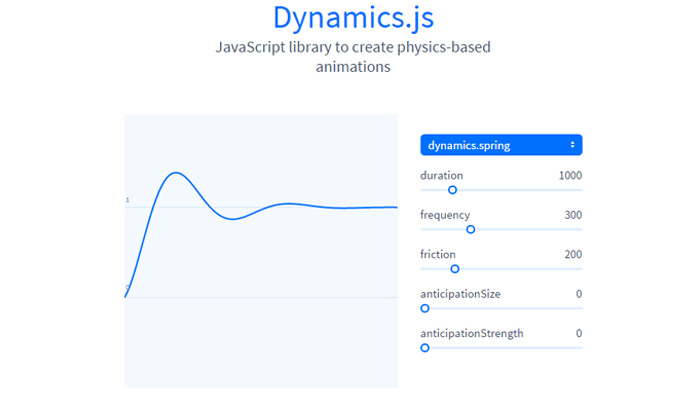
Dynamic.js
dynamics js javascript library


AniJS
ani.js javascript library animation


CSS Shake

css shake library transcript


Motio
motio plugin homepage design


Snabbt.js
snabbt.js javascript open source library


Textillate.js
textillate js javascript


Animsition
animsition js plugin library open source


Parallax.js
parallax js open source motion


FakeLoader.js
fake loader js javascript library


WOW.js
wow js animate css library


Bounce.js
bounce animation transition library


Effeckt.css
effeckt css library open source


Sweet Alert
sweetalert plugin sweet open source


Move.js
move js open source github


Easie
easie easing plugin jquery


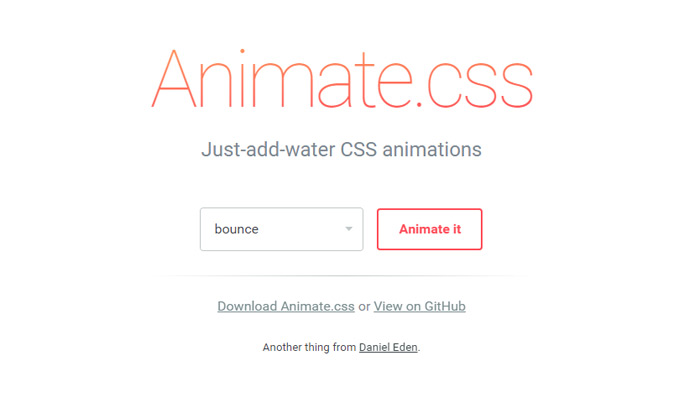
Animate.css
animate css open source code


iGrowl
igrowl modal window plugin open source


Morf.js
js javascript css3 transitions


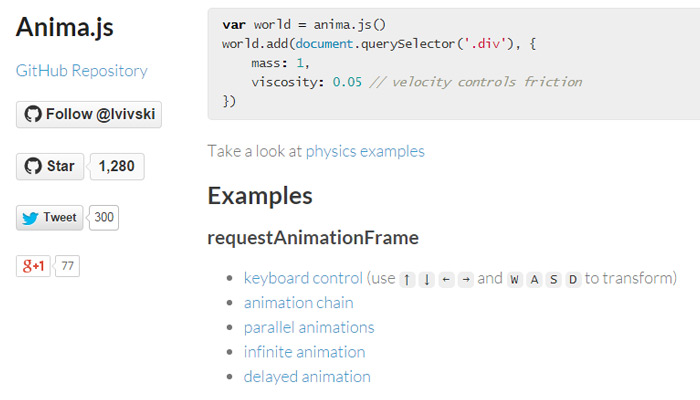
Anima
css animations anima library


JSTween
js tween javascript animation library


Transit
jquery transit smooth css3 code


Shifty
shifty open source javascript library


Velocity.js
velocity js open source animation


animatedModal.js
animated modal js open source lib


Stylie


Source: http://webdesignledger.com/free-web-animation-libs